Log in with your Facebook account



In the latest versions of Quick.Cms Ext and Quick.Cart Ext, the developer has prepared something that will certainly interest those of you whose company Facebook profiles – so-called fan pages – are buzzing with activity, and who take their company's presence on this social network, and its users, seriously. The paid versions of these scripts already offered an "add to" option, which lets you publish the content of pages and product pages on Facebook. Now the developer has made it possible for users to log in to the website with their Facebook account.
Why this modification?
Until recently, creating an account on a website built on the paid version meant filling in quite a few fields in the registration form. For many people this was a fairly complicated process, so visitors were reluctant to use the option.
Logging in to the website with a Facebook account is instant, requires no registration and leaves only the user's first name, surname and e-mail address on the site. Visitors can quickly and easily access the resources available to logged-in users.
What do you need to get it?
First of all, the latest version of the scripts: Quick.Cms Ext V5.1 or Quick.Cart EXT V6.1
Below is a short, 3-step description of what to do to enable Facebook login in these scripts, assuming the users add-on is already installed.
STEP 1
In the configuration file (general.php) of Quick.Cms EXT V5.1 or Quick.Cart EXT V6.1, find the place where 2 codes need to be entered:
a. In the line:
$config['fbAppId'] = '';
enter the App ID code (between the apostrophes)
b. In the line: $config['fbAppSecret'] = '';
- enter the App Secret code (between the apostrophes)
STEP 2.
Now that we know where to enter the codes, we can generate them. Go to https://developers.facebook.com/apps and click the “Create New App” button.
a. For the application name, enter e.g. your domain name without the dots, e.g. wwwyourwebsitecom
b. Set the page category and click continue without filling in the optional field… a CAPTCHA appears, so politely type in what it asks for.
c. A summary appears in which, among other things, you will see the App ID and App Secret. Copy them and paste them into the configuration of your Quick.Cms EXT or Quick.Cart EXT in the places found in step 1 of this description.
Then, in the summary, enter the address of the website for which you generated both codes in the Website with Facebook Login field.
STEP 3
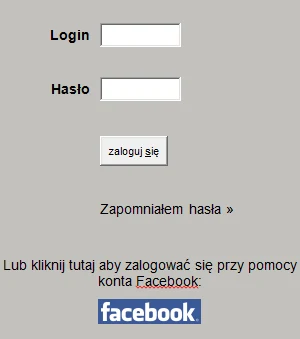
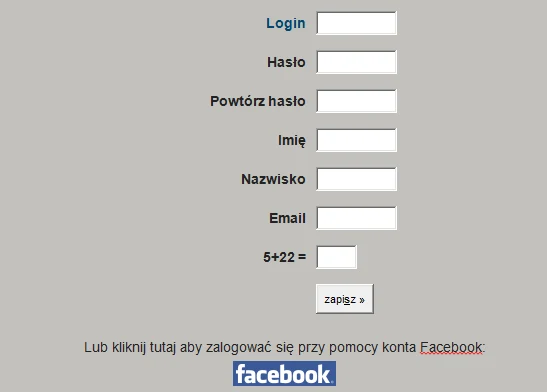
Check that it works. If the users option is installed correctly and the registration and login pages are visible, and the steps above were completed successfully, a "log in with Facebook" option appears below the forms.
We encourage you to use this option in the latest Quick.Cart Ext andQuick.Cms Ext
scripts
author: grafiQa